Under the Teens and Attendance menu, select "Attendance".

Locate the TOP Club you are taking attendance for by typing the club name or part of the name into the search field. The search is not case sensitive. Click "Search".
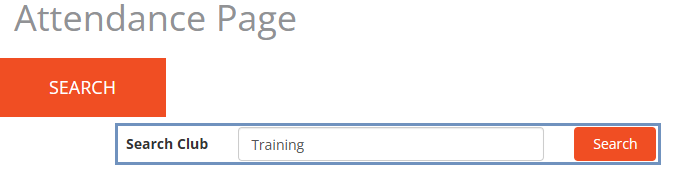
Tip: Click "Search" without filling the search field to list all clubs.
TOP Clubs are displayed in the table below the search form. Locate and click on the appropriate TOP Club. You will be redirected to the Meeting Details & Attendance form.
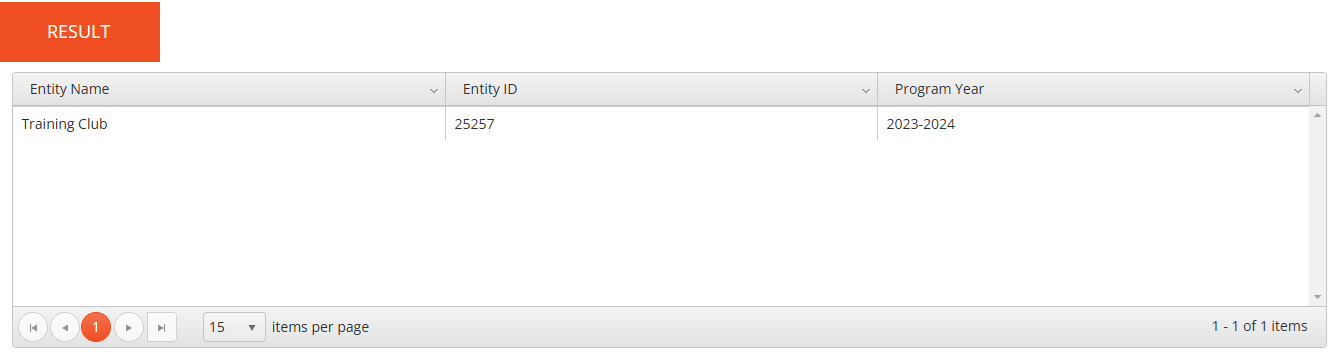
On Meeting Details & Attendance, in the Meeting Details section, enter the following information:

|
Field |
Description |
|
Date |
Enter the date of the meeting. Use the drop-down calendar or type in the date (MM/DD/YYYY). |
|
Curriculum |
From the drop-down menu, select the lesson that was facilitated during the meeting. |
|
Group CSL (min) |
Enter how many minutes are spent on Community Service Learning (CSL). |
|
CSL Description |
Type in details about Community Service Learning of this meeting. |
|
Other Meeting Activity |
Describe non-curriculum activity that occurred in the meeting if relevant, for example, a guest speaker. |
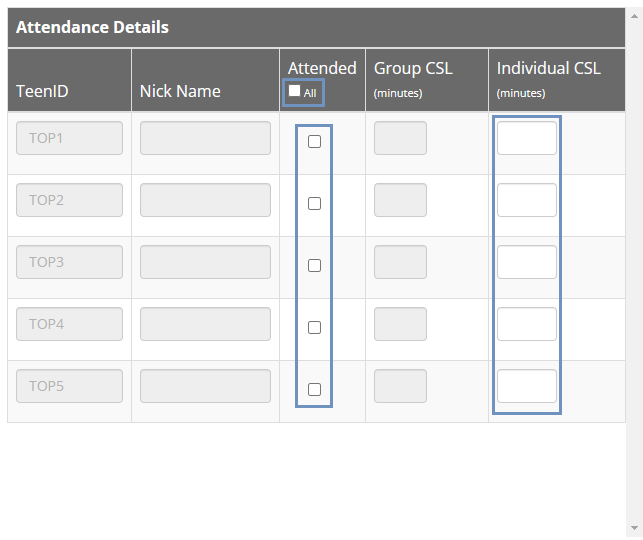
In the Attendance section, check the box for each teen in the club that attended the meeting and enter any additional attendance details:
Click Save. The success message will appear. Click OK.
Note: When attendance is saved, a new record becomes available in the Attendance Summary table and the attendance percentage is automatically calculated.